Thyro Light guide
Set up your device, learn the controller, and follow your routine. Read the full instructions here or save the printable guide.
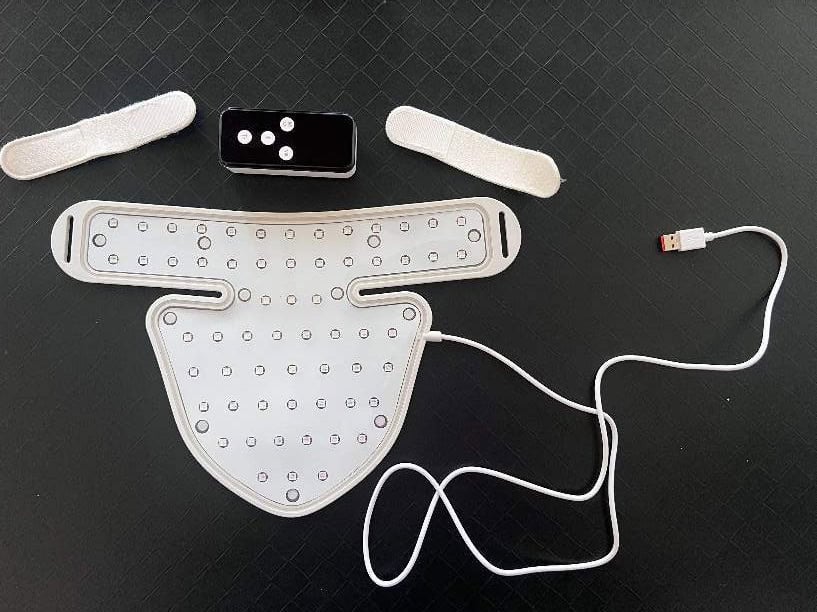
Download the PDFWhat’s in the box
- Thyro Light device
- 2 straps
- Controller
- USB-C charging cable
The charging cable isn’t pictured here.
Get your Thyro Light ready
1Charge, then unplug
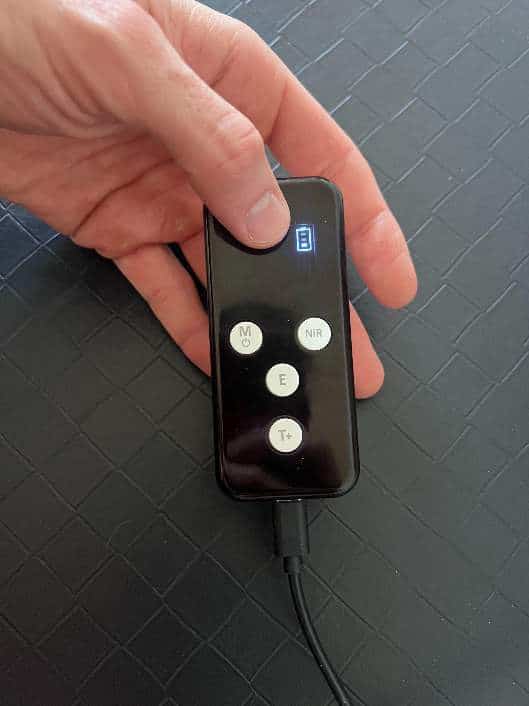
Plug the supplied USB-C charging cable into the bottom of the controller and connect it to a USB power source. Use a compatible power source that matches the controller input label. If you are unsure about an adapter or international voltage, send us a photo of the controller and adapter labels.
Unplug the charging cable from the controller before turning on your Thyro Light.
2Attach the straps
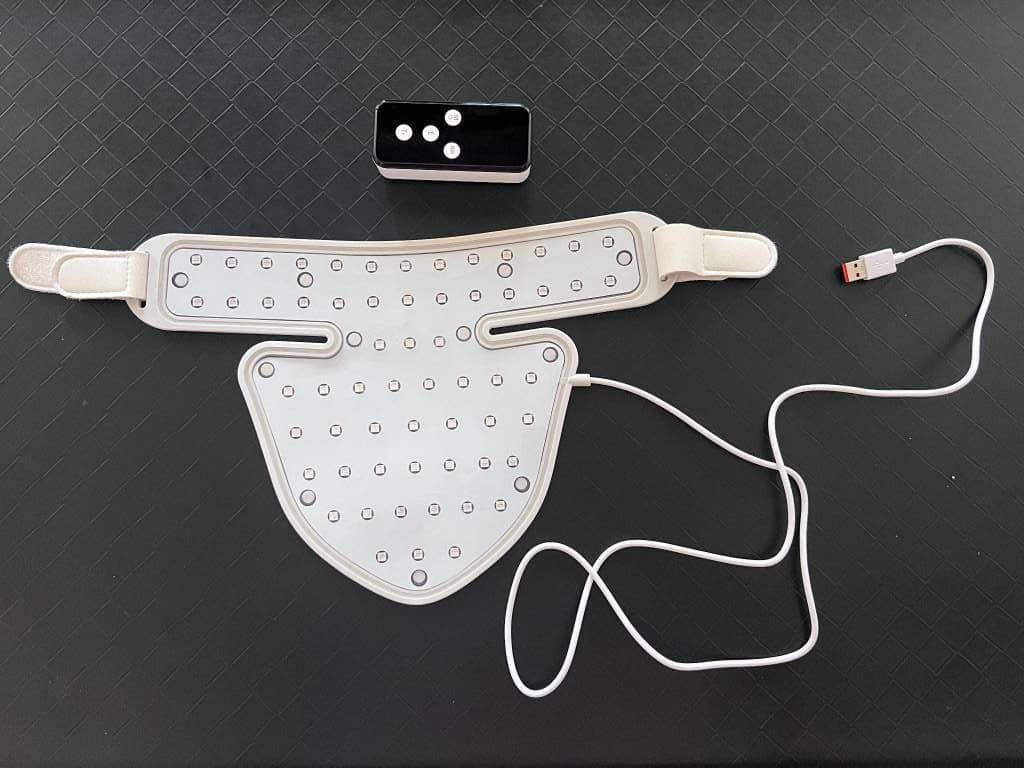
The two hook-and-loop straps may arrive fastened together. Separate them, pass them through the panel loops, and fold the ends back so the fastening faces meet. Do not cut or force pieces that will not separate. See the attachment and removal videos below.
3Connect the controller
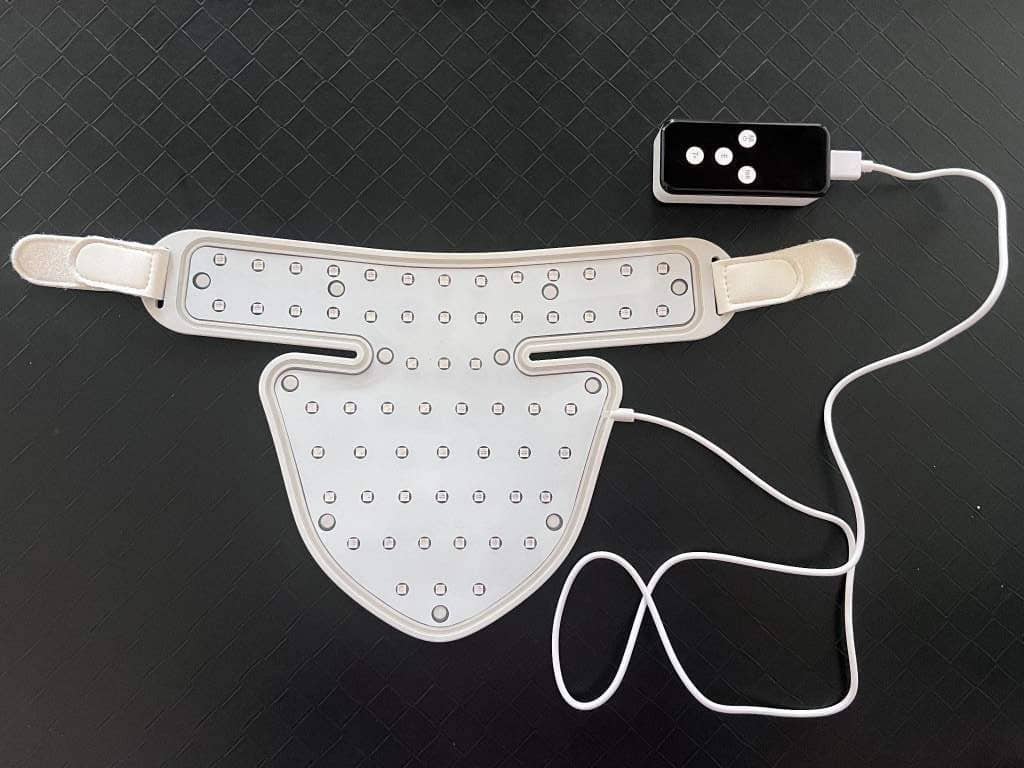
Connect the USB cable attached to the Thyro Light device to the larger top USB-A port on the controller. The small bottom USB-C port is for charging. This connection is required for the device to turn on.
Turn it on and set your session
4Long-press the M button
The M button is also marked with the power symbol. Hold it to turn the controller on or off.
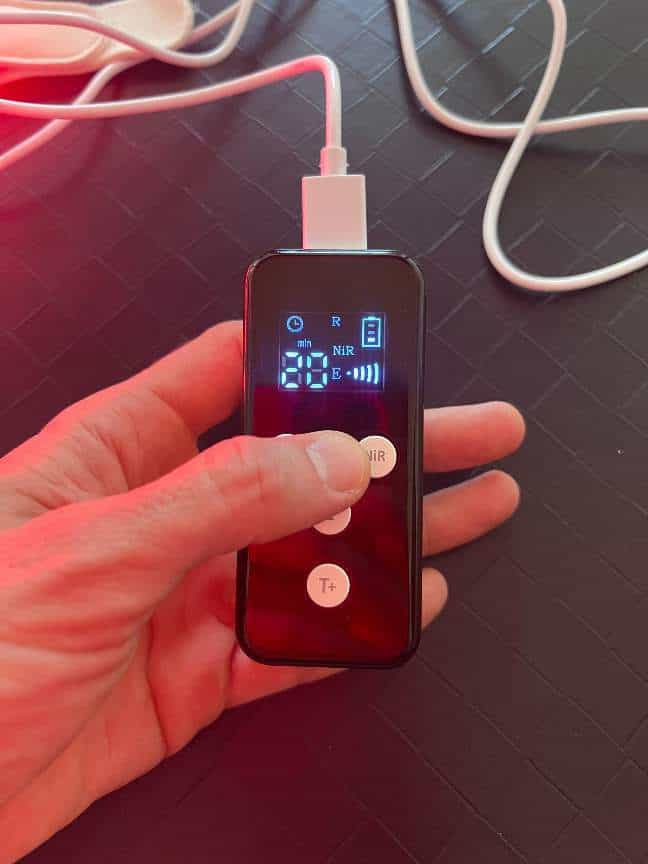
5Turn on NiR and select 20 minutes
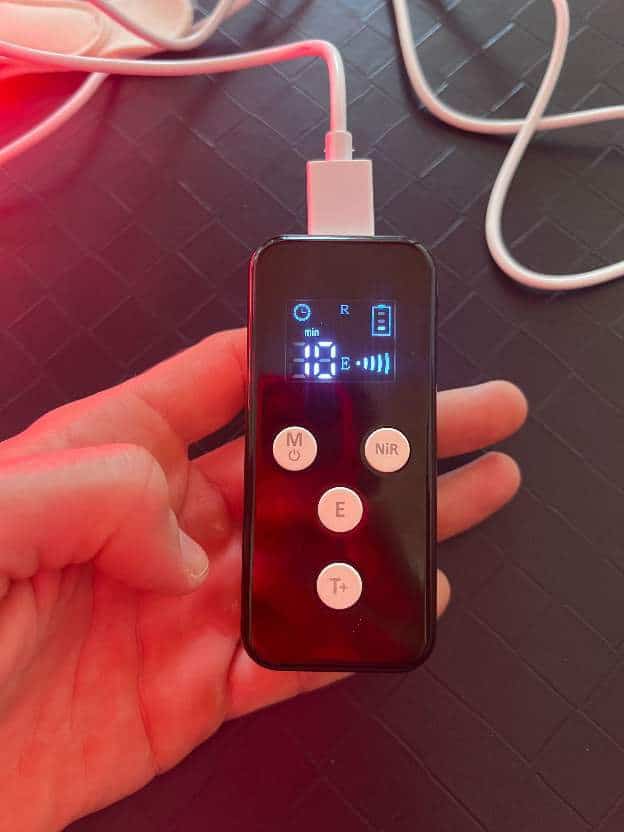
At startup, 3 of the 4 wavelengths are on, the timer is set to 10 minutes, and energy output is at maximum.
- Press NiR to activate the 850 nm near-infrared wavelength.
- Press T+ once to increase the timer to 20 minutes.
- Leave energy output at maximum.
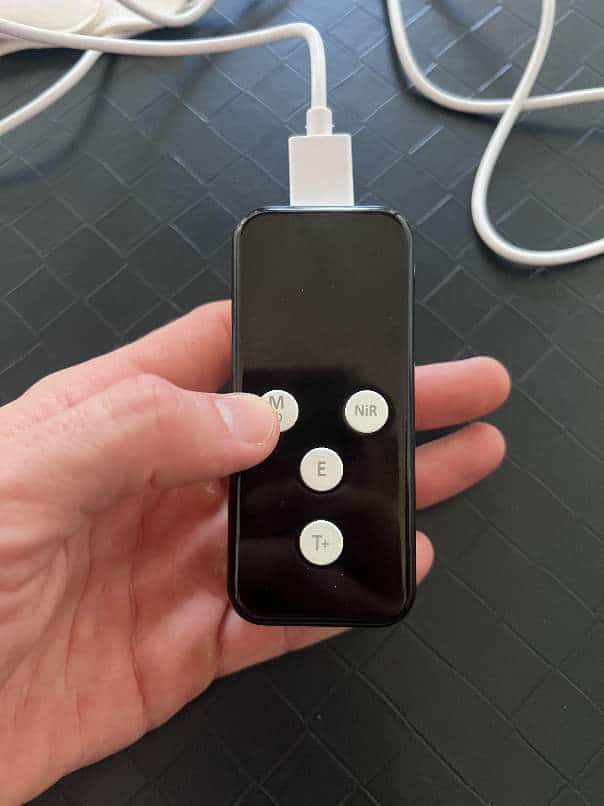
Know your buttons
- M
- Turns the controller on and off with a long press.
- NiR
- Activates the near-infrared wavelength (850 nm).
- E
- Adjusts the energy output.
- T+
- Adjusts the session timer.
Check the screen
R means the red lights are on. NiR means near-infrared is on. 20 means a 20-minute session.
E shows the energy setting. The battery icon shows the remaining charge.
Near-infrared light is invisible, so switching NiR on may not look different. Check for NiR on the screen.
Wear, clean, and repeat
6Secure the device and begin
Face the LEDs toward your neck and fasten the straps comfortably. A natural gap is okay: the panel does not need to sit flush against your skin. Do not overtighten to force contact. If it will not stay in position on a smaller neck, email us for fit help.
Sit or lie down comfortably. Keep the controller supported in a stable place, with the buttons clear of pressure and slack in the cable. Leave the device in place for the full session. The lights turn off automatically when your session is complete.
7Clean, store, and recharge
Turn off and disconnect the controller. Gently wipe the device with a soft, dry cloth and keep moisture out of the ports. Ask us before using alcohol, disinfectants or cleaning products. Store without sharp folds or cable tension, and do not force the panel into a pouch that is too small. Recharge as needed, then unplug the charging cable before your next session.
How often to use it
Use 3-5 times per week for 8-10 weeks, then 1-2 times per week for maintenance.
The selected wavelengths run together during one session. Do not split the routine into a red-only session and a separate NiR session. T2 Cream works before or after your session. Apply it to your skin, not to the device. Moisturizer can go on afterward. Choose a convenient time while awake; if bedtime use disrupts sleep, move it earlier and discuss persistent changes with your clinician. Do not extend sessions to make up for missed days.
Find the problem you see
My Thyro Light will not turn on.
Remove the USB-C charging cable from the bottom of the controller. Keep the panel connected to the top USB-A port, then press and hold M. A quick tap is different from a long press. If needed, charge through the bottom port and unplug before trying again. If it still fails, tell us whether the screen stays dark, the screen turns on but the panel stays dark, or it starts and stops early.
There is no charging indicator, or the bars are unclear.
Check the bottom USB-C port, then try a compatible charging cable and wall adapter. A dark idle screen alone does not prove the battery is dead. If the display stays unclear or no indicator appears, contact us with the controller label and a photo of the display. The port, cable, power source or controller may be involved.
How long should charging take, and how many sessions should I get?
Charging time and runtime depend on the controller and selected settings. If the first recharge fails, the battery drains unusually quickly or the display is unclear, tell us the session duration and settings, and send the controller label. Do not keep repeating long charges or assume one fixed session count applies to every setup.
The controller is on, but the panel is dark.
Remove the charging cable and check the panel connection. If the visible red light stays off or cuts out while the timer runs, contact support. This is different from the controller screen staying dark.
The light stops before the timer ends.
Charge, unplug and check the panel connection. If it repeats, tell us how many minutes it runs, the selected timer and energy settings, and whether NiR is on. If the session ends at 10 minutes, first check whether the default 10-minute timer was still selected.
NiR looks unchanged, or a visible section flickers.
Near-infrared is invisible. Check the NiR indicator on the screen; switching it on may not make the panel look brighter. A visible red light that used to work, a changed visible pattern or a section that now flickers needs support. Do not look directly into the LEDs to test them.
M, NiR, E or T+ will not respond.
Check the normal setup, including removing the charging cable and connecting the panel. If a button is stuck or remains unresponsive, contact us. Do not open the controller or force a button.
There is no beep at the end.
This is normal. The light turns off automatically when the selected session ends. There is no end-of-session beep.
The straps will not grip or keep coming loose.
Check that the hook-and-loop faces meet and gently remove caught hair or lint. If the closure still will not hold, email us for help. Do not keep tightening the straps to compensate for a damaged closure.
A strap is peeling, ripping or separating.
Contact us about the damaged strap and include a photo if possible. Cleaning the fastening surface will not repair separated layers. Do not glue, sew or cut the strap as a troubleshooting step.
The pieces will not separate, or removal is difficult.
The two pieces may arrive fastened together. Watch the attachment and removal videos below. If they seem sewn together, fused or difficult to separate without damage, stop and ask us before cutting or modifying them.
The connector is stiff, loose, or power cuts out when moved.
Check orientation and gently reseat the accessible controller connector once. Do not force it or pull on the cable. If power changes when the cable moves, or a connector is bent or damaged, stop use and contact us.
A cable is frayed, a part is very hot, or the surface smells or deteriorates.
Stop use and disconnect power. Email us about the affected adapter, cable, controller or panel, with a photo if possible. Do not keep charging or bending a damaged part to make it work. For persistent odor or material sensitivity, ask us to check the details for your device.
A part is missing, or I see protective film.
Your setup uses a panel, controller, two straps and a USB-C charging cable. Email us about missing parts or questions about the wall adapter in your package. Remove only clearly identifiable shipping film. If you cannot tell it from the permanent surface, ask us before peeling. Removed shipping film does not need to be reapplied.
Know when to pause
Check with your clinician first
Ask for individual advice if you are pregnant, trying to conceive, breastfeeding, have a pacemaker or implanted device, have Graves’ disease or hyperthyroidism, have a hot or unevaluated thyroid nodule, have had thyroid removal or radioactive iodine, or have sensitive or tattooed skin. Do not assume the same routine is appropriate for every condition.
Do not use over active thyroid cancer, during radiation treatment to the neck, or over open wounds, infection or inflamed skin. Do not use if you cannot reliably feel heat in your neck. Benign nodules should first be evaluated by your clinician to rule out malignancy.
Light sensitivity and medication
Some medicines increase light sensitivity. Ask your prescribing clinician or pharmacist before use if you take a photosensitizing medicine. Do not change thyroid medication based on a light session or how you feel.
New symptoms? Stop your session.
For burning, rash, new swelling, palpitations or feeling worse, stop use and contact your clinician before restarting. Tell our support team about the device issue too. Seek urgent medical care for chest pain, trouble breathing or fainting; do not wait for an email reply.
For questions about an atrophied gland, parathyroid conditions or changes in hair shedding, ask your clinician how your diagnosis affects the treatment plan. This device guide cannot determine whether symptoms or lab changes are caused by the device.
Care, returns and product details
Missing parts or protective film?
Your setup uses the panel, controller, two straps and a USB-C charging cable. Contact us if something is missing. Remove only clearly identifiable shipping film; if you cannot tell it from the permanent surface, ask us before peeling.
How long should charging last?
Charging time and runtime depend on the controller and settings. If the charge display is unclear, the battery drains unusually quickly, or the first recharge fails, send us your controller label and the symptoms. Do not keep repeating long charges.
Can I use it on my face, eyes or scalp?
This guide covers the Thyro Light neck device. Do not look into the LEDs. Ask us before using a different placement, a cloth barrier, or combining light sessions with a massager or sauna; do not reuse this routine for the eyes, scalp or another product.
Materials, odor or technical specifications?
For material sensitivities, a persistent odor, adapter ratings, international voltage, country of manufacture, EMF testing or certification documents, email us with the label from your device. We can check the details for your model.
Warranty, returns or no noticeable change?
Thyro Light has a 1-year device warranty and a 120-day money-back guarantee. Contact us for eligibility and return instructions, including Amazon and gift purchases. Ask your clinician about lab timing or worsening symptoms; do not extend sessions because you have not noticed a change.
Can I combine neck, face and hair devices, a panel, sauna or massager?
Ask us about the combination and your clinician about your treatment plan before adding sessions. Do not automatically repeat the neck routine on another body area or assume overlapping treatments are interchangeable.
Where can I check specifications and research?
Thyro Light uses LEDs with 630 nm and 660 nm red light plus 830 nm and 850 nm near-infrared light. It is not a laser. For model-specific power, irradiance, adapter compatibility, EMF testing or certification documents, send us the label from your device. The product page Scientific References lists the research.
Tell us what happens
Email hello@restartmed.com. Include the symptom, the cable and port you used, the checks you already tried, and your purchase date and seller. Add the order number or receipt if available. A photo or short video can help us identify a damaged part.
You do not need to repeat the same unsuccessful steps. We can help with replacement-part availability, missing parts, warranty questions and purchases from Amazon or received as a gift. Please wait for instructions before sending a device back.
Start a return · Read the return policy · Shipping, payments, discounts, rewards and HSA/FSA questions
No smartphone or QR code is needed: read this page or print the PDF. If a video will not load or you need an accessible copy, email us.
Video walkthroughs


Prefer a printed guide?
Download the 12-page guide with photos, setup instructions and troubleshooting.
Updated September 2026.